User Guides
Finish Up
Learn how to use Rezi’s Finish Up & Preview tab to choose templates, optimize formatting, target keywords, improve your score, and download your resume.
Published on
July 15, 2026
Updated on
August 3, 2026
Missing qualifications, a few not-so-subtle typos, and your old phone number are all things you could overlook if you skip the all-important final check. The Finish Up & Preview tab gives you one last opportunity to review your resume, optimize it for the job you’re targeting, and make sure everything looks professional before you apply.
In this guide, I’ll walk you through the tools and features you can explore on the final preview page and what to look out for before sending your application.
To get started, check out our free AI Resume Builder. We guide you through each section to create a tailored, ATS-friendly resume with personalised suggestions and feedback.
Once you’ve completed your resume, try our other advanced features:
And take a look at more tips for creating a standout resume:
What is the Finish Up & Preview tab in Rezi?
The Finish Up & Preview tab is where everything comes together. After building your resume, this final step gives you a chance to review your details, make design adjustments, optimize your content, and make sure you’re ready to apply.
This involves previewing templates, customizing formatting, checking for missing keywords from a job description, and reviewing your Rezi Score for personalized feedback. Once you’re happy with the results, you can download your resume or share it with others for a final review.
How to Finish Up and Preview Your Resume
Here’s a quick rundown of what you can expect on the Finish Up and Preview page:
- Finish Up & Preview by reviewing your completed resume one last time to catch mistakes, improve clarity, and ensure everything is professional.
- Choose your resume template by exploring different designs, comparing layouts, and selecting a style that best fits your preferences, content, and professional goals.
- Explore formatting options to personalize your resume’s appearance with ATS-friendly adjustments or automatically optimize the layout using Auto-Adjust.
- Tailor your resume with keywords by comparing your resume against a job description and adding relevant terms that help prove your fit for the role.
- Check your Rezi Score and feedback to identify improvement opportunities and strengthen your resume.
- Download your resume in your preferred format or share it with others for feedback before submitting your application.
Now let’s explore these steps and how to take full advantage of the final check features.
1. Finish up and preview
Before you can use the Finish Up & Preview tab, you’ll need a completed resume. You can start from scratch or upload an existing resume if you already have one. If you’re applying for a specific position, take advantage of the resume targeting feature early in the process.
As you build your resume, Rezi guides you through each section one step at a time. The platform provides fill-in fields, writing guidance, AI-powered suggestions, and feedback throughout the process, making it easier to stay organized and focused.

Once you’ve completed your sections, head to the Finish Up & Preview tab.
2. Choose your resume template
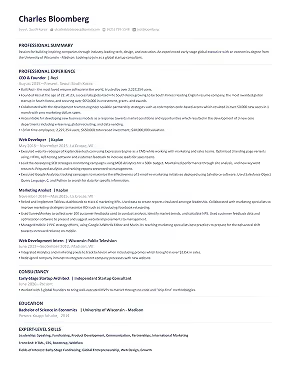
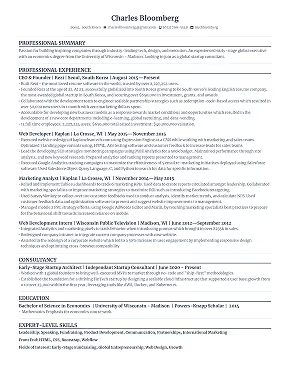
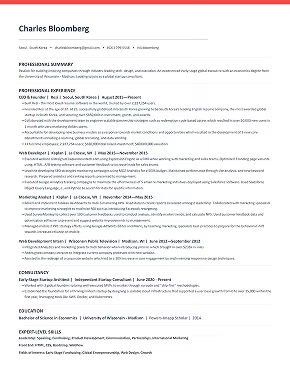
When you arrive at the preview screen, click the Template button to explore Rezi’s available resume designs. The platform will recommend ATS-friendly templates based on your resume content, but you can browse the full library and choose whichever style best fits your needs.
Template categories include:
- Simple
- Modern
- Creative
- Compact
Rezi also makes it easy to:
- Save favorite templates for later
- Revisit recently viewed templates
- Compare multiple designs side by side before deciding
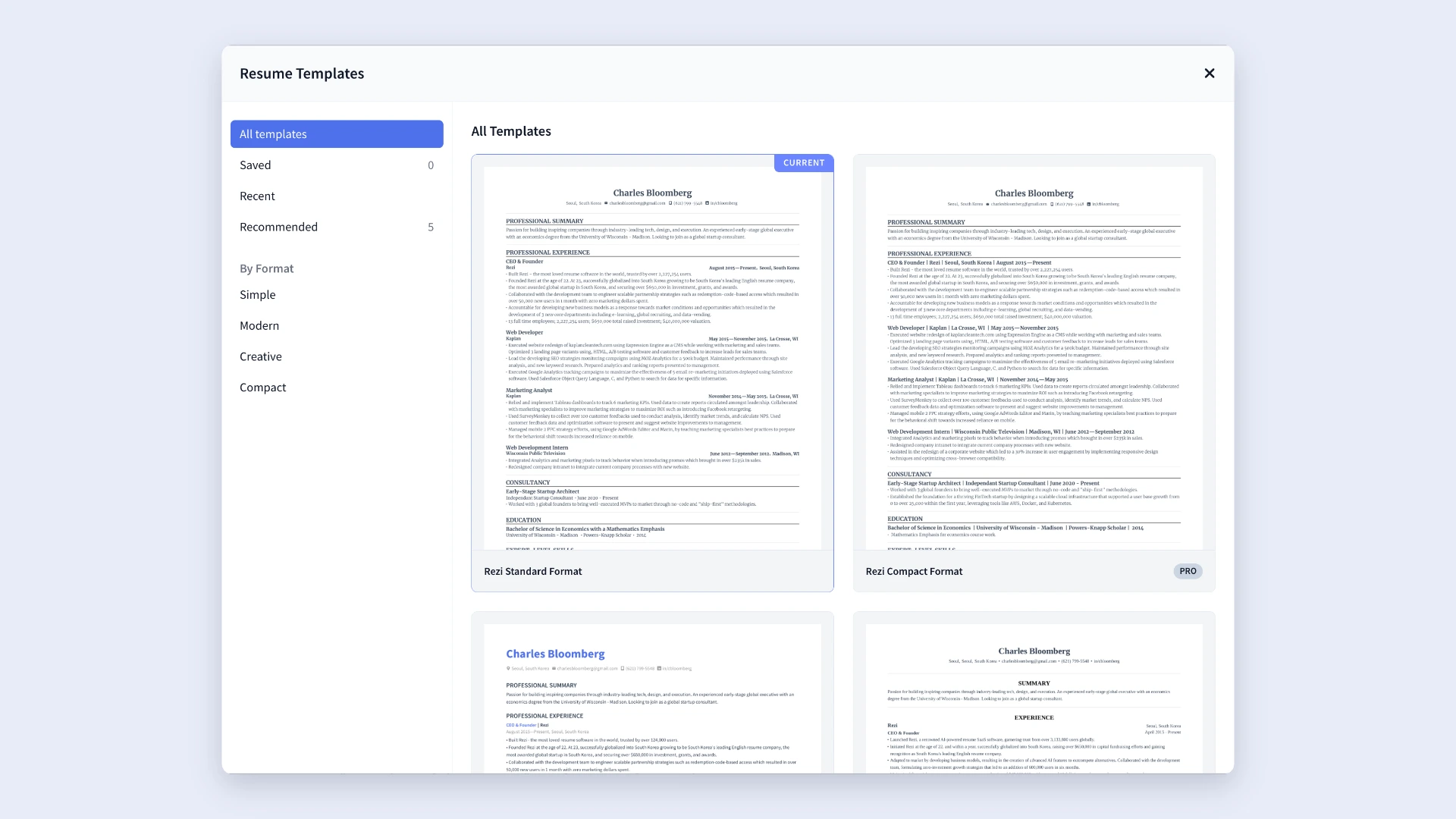
The preview feature lets you see exactly how your resume appears with each template, so you can choose a design that aligns with your content and industry. Just keep in mind that while some templates are free, certain premium designs require a Pro or Lifetime subscription.
Check out our ATS resume template gallery to explore all the different layouts.
3. Explore the formatting options
After selecting a template, open the Adjustments tab to customize its appearance. Rezi gives you enough control to personalize your resume without creating formatting problems that could interfere with Applicant Tracking Systems (ATS).
You can customize:
- Resume icons for contact information
- Resume photo
- Font style
- Font size
- Line spacing
- Indentation and section dividers
- Accent colors
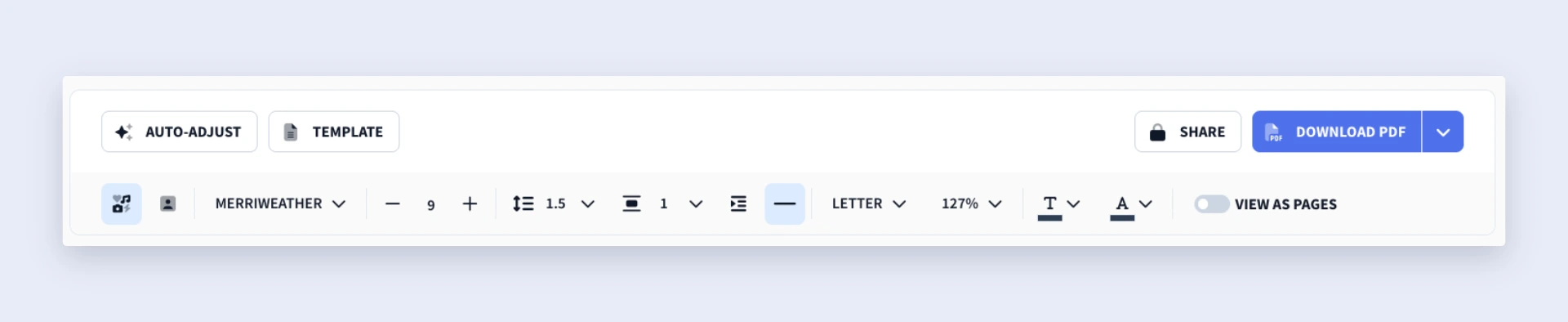
These settings stick to ATS-friendly guidelines, so you can make changes without worrying about harming your resume’s compatibility with hiring software.
If you’d rather not spend your time adjusting everything manually, use Auto-Adjust. This feature automatically optimizes spacing, layout, and formatting to create a more balanced resume.
4. Tailor your resume with keywords
One of the most valuable tools in the Finish Up & Preview section is AI Keyword Targeting. This feature compares your resume against a job description and identifies important keywords you might have missed.
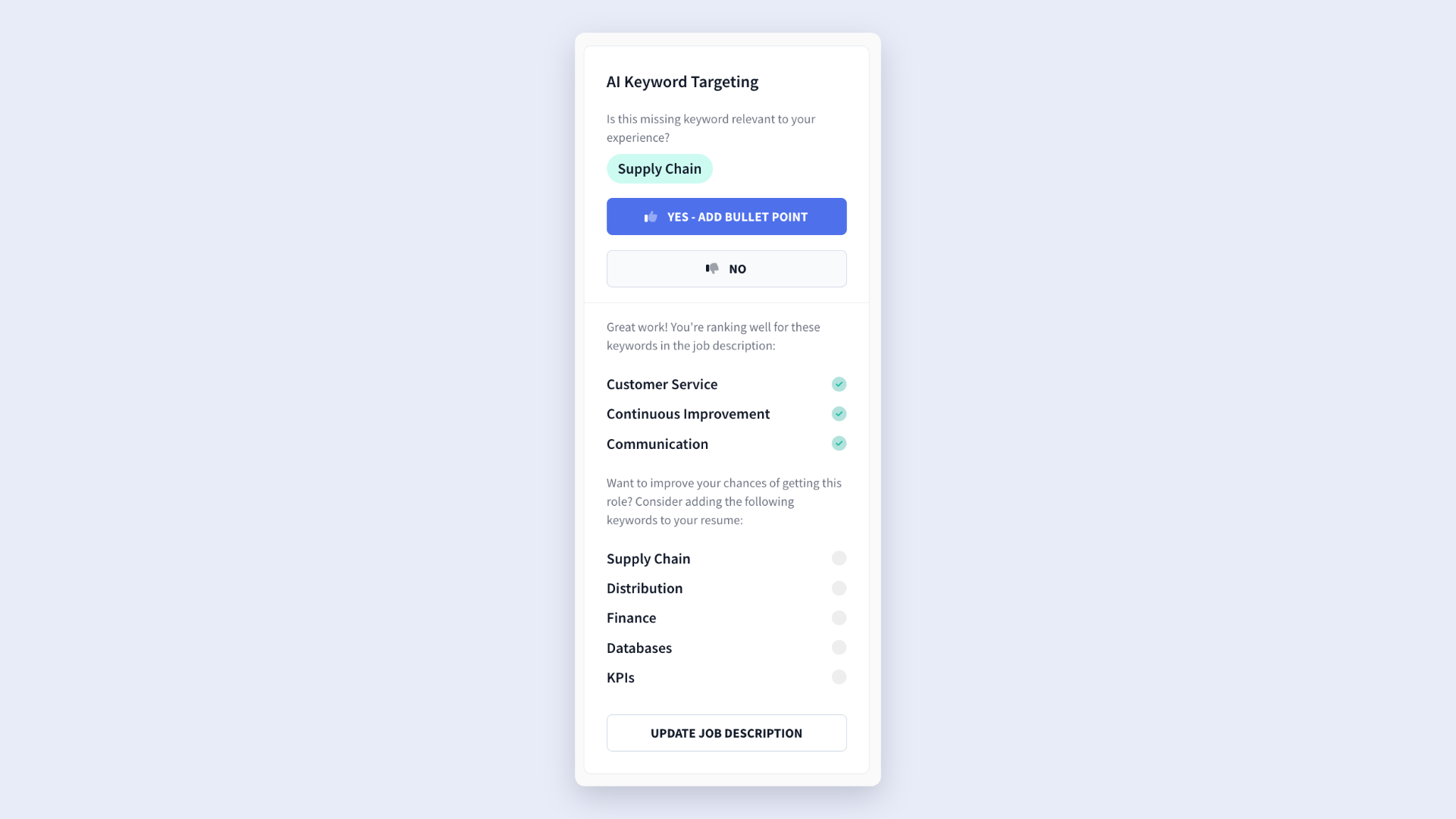
If you entered a job description at the beginning of the resume-building process, Rezi automatically uses that information. If not, you can add a job title and description directly within the keyword targeting tool.
The tool shows:
- Keywords you’ve already included
- Missing keywords that appear in the job posting
- Highlighted keyword matches throughout your resume
- Suggested bullet points that naturally incorporate missing terms
For every missing keyword, Rezi generates a new bullet point that includes the term under the most relevant work experience entry. You can accept the suggestion, generate another version, or edit it yourself until it accurately reflects your experience.
5. Check your Rezi Score and feedback
Another feature I suggest reviewing before downloading your resume is your Rezi Score. In the preview page, simply select Explore My Rezi Score to see a detailed analysis of your resume and identify areas for improvement.
.webp)
The score ranges from 1 to 100 and evaluates how well your resume aligns with current hiring standards and ATS requirements. Rezi calculates the score using five categories:
- Content
- Format
- Optimization
- Best Practices
- Application Ready
Just don’t fixate too much on the score; work on the feedback behind it. Some suggestions focus on overall resume quality, while others target specific resume sections, bullet points, or wording choices.
As you make improvements, Rezi updates your score, with applied recommendations getting a green checkmark, making it easy to track your progress and see what still needs attention.
6. Download your resume
Once you’re satisfied with your content, formatting, resume keywords, and feedback, you’re ready to download your resume.
Rezi supports three options:
- DOCX
- Google Drive
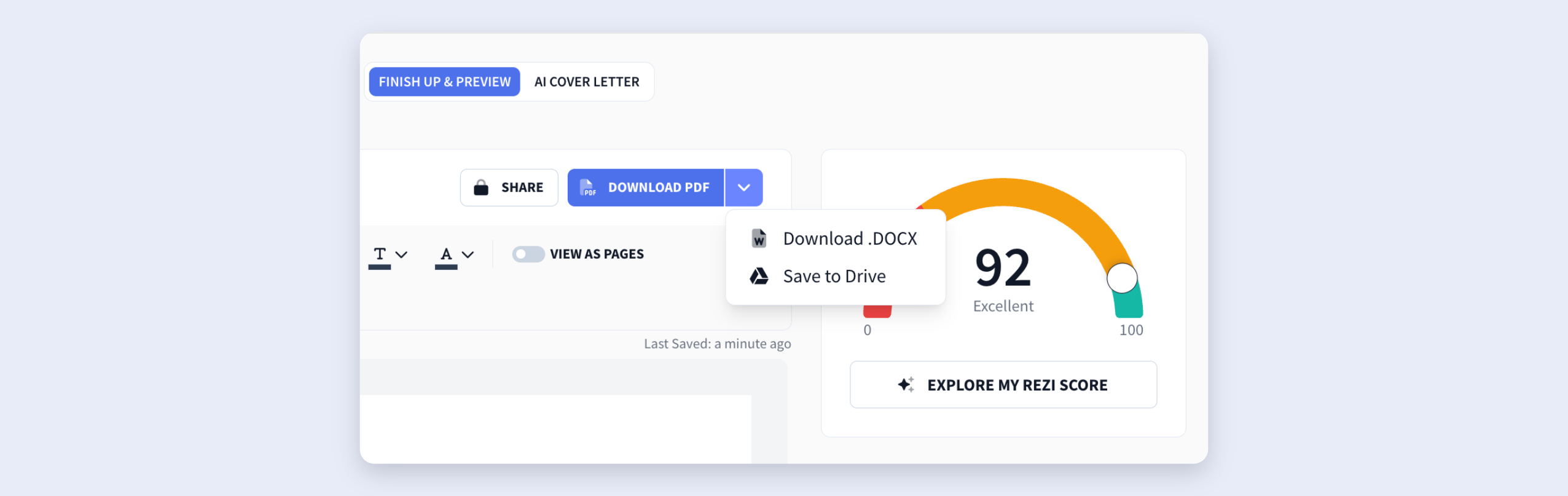
With Rezi's free plan, you can download up to three resumes as PDFs. If you'd like unlimited downloads or the option to export your resume as a DOCX file or directly to Google Drive, you'll need to upgrade to a paid subscription.
If an employer requests a specific file type, always follow their instructions. But if no resume file format is specified, a PDF is your best bet. PDFs preserve formatting across devices, maintaining a consistent appearance for recruiters and hiring managers.
Need another opinion before you apply? Rezi also includes a sharing feature. Select Share, adjust the permissions to Anyone with the link can view, and generate a unique URL. This lets you send your resume for a second pair of eyes before you hit submit.
Final Checks Before Sending Your Resume
I get the temptation to quickly send your application and move on. But it’s worth spending a few extra minutes on some final checks (just don’t enter procrastination territory). A speedy review can help you avoid simple mistakes that could give another candidate the edge.
Here are the final steps before submitting your application.
Opt for a clear and professional file name
Before downloading, make sure the resume filename is clear and professional. Recruiters review dozens of applications, so you want them to identify your document instantly.
A simple format works best:
- FirstName_LastName_Resume.pdf
- FirstName_LastName_Marketing_Manager_Resume.pdf
Adding the job title can be handy when you’re applying for a specific position, as it shows you’ve customized your application and makes it easier for recruiters to organize and search for candidate files.
Avoid special characters such as !, @, #, $, %, and similar symbols. These can create compatibility issues in some systems and can make your resume look less professional.
Compare against the job description
Yes, tailoring your resume is important, but it doesn’t need to become a lengthy project for every application. You don’t want to rewrite your entire resume every time you apply, but you also shouldn’t send the same generic version to every employer.
I recommend spending about 10 to 15 minutes reviewing the job description and making specific updates. Focus on:
- Adding relevant keywords
- Including resume skills to match the role
- Adjusting job titles for better alignment
- Highlighting the most relevant accomplishments
Tools like Rezi’s AI Keyword Targeting feature can make this process much faster by spotting important terms you’ve missed and suggesting ways to include them.
Just remember: your goal isn’t to create a perfect one-to-one match. That’s not realistic. Instead, make a few tweaks so the recruiter understands why your background aligns with the position. If they can immediately connect your experience to the role, you’ve done your job.
You can also use the Rezi MCP Toolkit to connect to your Rezi account and tailor your resume to any job listing using popular AI platforms.
Check for typos and grammar
Even a strong resume can lose credibility because of simple mistakes. Spelling errors, grammar issues, and outdated information can hint at a lack of attention to detail, which isn’t the first impression you want to give.
Before sending your resume:
- Read it aloud to catch awkward wording and overlooked mistakes.
- Run it through a spell-check tool such as Grammarly (just don’t blindly rely on it).
- Verify that your phone number, email address, and other contact information are current.
- Ask a friend or trusted colleague to review it.
You can also try our Resume Review feature if you'd like some expert eyes on your resume. Our reviewers give detailed feedback and practical suggestions to help you improve your content, fix weaknesses, and create a more competitive resume.
That said, while feedback from others can be valuable, don’t let the search for perfection slow you down. Job opportunities move quickly, and submitting a strong resume today is better than endlessly revising it for tomorrow.
Summary
Here’s an overview of everything you need to know about the Finish Up and Preview page:
- Complete or upload your resume first, then use the Finish Up & Preview tab as your final review stage to refine content and improve presentation.
- Browse Rezi’s template library to preview different resume designs, compare layouts, save favorites, and choose a format that best matches your industry and experience.
- Customize your resume through the Adjustments tab, where you can switch fonts, spacing, colors, icons, section dividers, and other visual elements.
- Use Auto-Adjust if you want Rezi to automatically optimize spacing, formatting, and layout with minimal manual effort.
- Take advantage of AI Keyword Targeting to compare your resume against a job description and identify important skills, qualifications, and phrases.
- Review missing keywords and generate AI-powered bullet-point suggestions that naturally incorporate those terms, then edit as needed.
- Check your Rezi Score to see how well your resume aligns with modern hiring standards, ATS requirements, and resume-writing best practices.
- Focus on the feedback, using Rezi’s recommendations to strengthen weak areas and track completed improvements with green checkmarks.
- Preview your final resume carefully to catch typos, formatting inconsistencies, missing information, or other small issues that could affect a recruiter’s first impression.
- Download your resume as a PDF, DOCX, or via Google Drive, or generate a shareable link if you’d like feedback before applying.
FAQ
Do you need to complete every section before using the preview feature?
No, you can open the Finish Up & Preview tab at any point during the resume-building process. However, any sections you haven’t completed will simply appear as empty space or be missing from the final document. While it’s useful to preview your resume early to check the layout and formatting, you’ll get the most value from the feature once you’ve added most of your content.
Are Rezi’s resume templates ATS-friendly?
Yes. Rezi’s templates are designed with Applicant Tracking Systems (ATS) in mind, which is why they prioritize organized layouts, clear section headings, and simple formatting. Rather than focusing on overly decorative designs, Rezi aims to balance professionalism and readability while ensuring hiring software can accurately scan and interpret your resume.
Check out more ATS-compatible resume templates:
Do premium templates require a subscription?
Yes. While Rezi offers free templates, some advanced and premium designs require a paid subscription. Rezi Pro costs $29 per month, while the Lifetime plan is available for a one-time payment of $149. If you’re happy with the free options, you can still create a professional resume without upgrading.
Can you edit your resume after using the Finish Up & Preview tab?
Yes, you can make edits directly from the preview page or return to any section of the resume builder to update your content. This flexibility makes it easy to improve your resume as you review feedback, adjust formatting, or tailor it for different applications.
How do you know when your resume is ready to submit?
A resume is usually ready to submit when it clearly shows your qualifications, aligns with the target role, and is ATS-friendly. In Rezi, you can use your Rezi Score, keyword targeting results, and AI feedback as helpful indicators. Before applying, make sure you’ve reviewed the content, checked for typos, verified your contact information, and confirmed that a recruiter can quickly see why you’re a strong fit for the position.

Upload or drop your resume to get started
Upload your resume to get started
Score my resume

Lauren Bedford is a seasoned writer with a track record of helping thousands of readers find practical solutions over the past five years. She's tackled a range of topics, always striving to simplify complex jargon. At Rezi, Lauren crafts genuine and actionable content that guides readers in creating standout resumes to land their dream jobs.
.webp)