Resume
30+ Best Adobe Illustrator Resume Templates for 2026
Learn how to create a standout resume using Adobe Illustrator. Get templates, step-by-step design tips, and advice on when to use (and avoid) Illustrator.
Published on
September 3, 2025
Updated on
March 11, 2026
Adobe Illustrator resume templates are perfect for creating a unique, professional look, especially if you’re applying directly to a hiring manager or for creative roles. You can choose a built-in template, upload your own, or design one from scratch. Just remember that features like icons, columns, and graphics often aren’t ATS-friendly. If you’re submitting through an online system, simpler formats are safer. But for in-person or email applications, Illustrator lets you fully express your creativity.
Thinking about using Adobe Illustrator to design your resume? It’s a fantastic tool that can help your resume stand out, but whether it’s the right move for you depends on what you’re after.
Sophia wants a resume that shows off her creative skills. She’s heard Illustrator is the industry go-to, but wonders if it’s more trouble than it’s worth.
Miguel’s sick of basic, boring Google Docs templates. He wants something original, maybe even built from scratch. But he’s not sure how to make it both stylish and readable.
And Grace? She’s just trying to decide if Illustrator is worth that free trial (because let’s be honest, she never cancels on time).
If you relate to any of them, this guide’s for you. You’ll find:
- 30+ Illustrator-compatible and Illustrator-alternative resume templates.
- Step-by-step instructions on how to make your resume on Illustrator.
- The pros and cons of using Illustrator for your resume.
Want a faster, easier option instead? Try the free Rezi AI Resume Builder. And if you’re just browsing templates, check out these collections:
- Best Free Resume Templates & Tips
- 35+ Professional Resume Templates
- 25+ Free Canva Resume Templates
- 50 MS Word Resume Templates
- 40 Free Google Docs Resume Templates
- The Free ATS-Friendly Resume Template
Sample Illustrator Resume Templates
I’ve pulled together a curated batch of resume templates made by Illustrator (or at least Illustrator-compatible) so you can browse and find one that fits your style.
Before you dive in, though — a quick side note. Most of these aren’t exactly ATS-friendly. Things like icons, multiple columns, and fancy design elements can trip up resume-scanning software. That doesn’t mean they’re useless, just that they work best when you know your resume’s going straight to a real person’s hands (not into the black hole of an ATS).
So if you’re applying by email, through a connection, or handing it over in person, go wild. If it’s going into an online portal with over 300 other resumes? You’re probably better off with a simpler, ATS-friendly option.
With that said, let’s go through some of the templates available directly in the Adobe Illustrator app.
Fashion designer resume template
Comes with four pages, but you really only need one. The layout is sleek, but skip the photo and hobbies icons. Reorder the experience section and use bullet points for clarity. Leave out the references.

Minimal resume template
“Profile” is misspelled — fix that first. The black and white contrast makes sections easy to spot. Skip the job summary and jump into bullet points under each job. Make sure your skills are legible on the black background.

Yellow
Simple resume template
The yellow border adds just the right touch of color. The skill bars take up too much space, and they’re not very useful, so replace them with a simple line of skills. Use that extra space for more job details if needed.

Clean resume template
Heads up, “experience” is spelled wrong. The sidebar highlights your timeline nicely. Also, consider changing “Expertise” to “Skills,” that’s the term most hiring managers and ATS are scanning for.

Creative collaborations resume template
Love the clean, single-column layout, which is great for ATS. Put experience above education, and keep your school details brief. And don’t worry about filling every job slot — Rezi users average four jobs per resume, so you’re in good company.
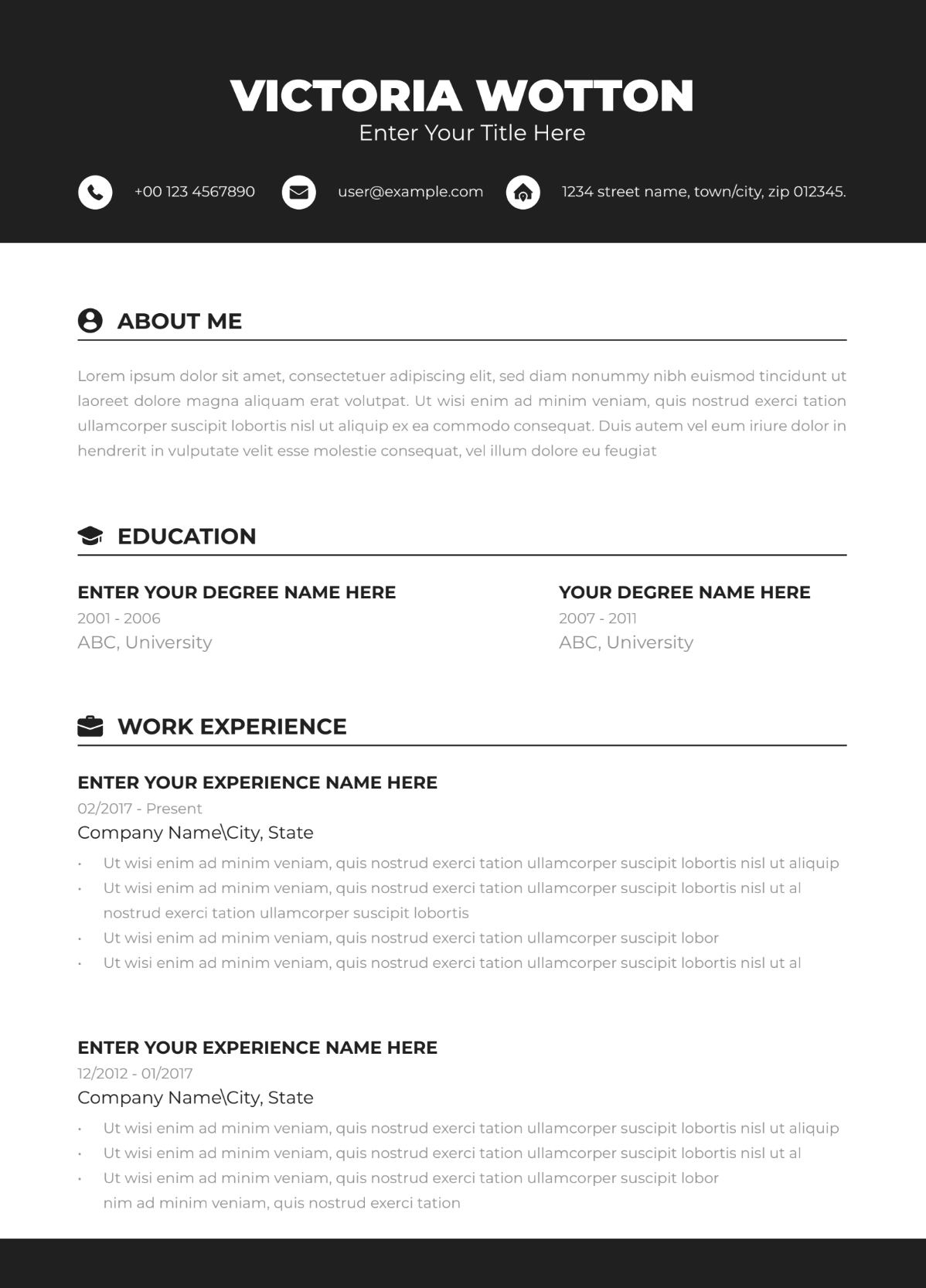
The following resume is available on Adobe Illustrator (Beta).
Classic resume template
Clean, professional, and timeless, this template nails the basics. Consider bumping up the size of your contact info (and ditching the all-caps). I’d also recommend removing the references section to free up space.

Now, let’s look at other templates available on Adobe and compatible with Illustrator.
Minimal one-page resume template
Great if you want everything on one page without it feeling crammed. Just be cautious with ATS — the layout might confuse it. Bold your job titles and achievements so they stand out more.

Pink resume template
A fun, creative design that works well for artistic roles, especially if you’re including a photo. Skip the photo if you’re not in acting or modeling, and definitely add bullet points under your job experience.

Resume/CV template
Love the left-side timeline; it’s perfect for showing career growth or long-term roles. Tons of white space keeps things easy to read. Just make sure your work experience includes bullet points.

Clean minimalist resume template
Simple, sharp, and professional. It includes space for a summary (which is great), but I’d swap out the references section and use that space more strategically. Also, replace skill bars with a clear list instead.

Yellow and white resume template
The yellow dividers are subtle but do a great job of breaking up each section. It’s clean and compact, but I’d recommend tightening the spacing and putting your skills in a single line so there’s room for more bullet points under your work history.

Elegant resume template
The pink sidebar gives this a soft, polished vibe while keeping everything nicely organized. Just make sure you include 3–8 bullet points under each job and remove the references section to save space.

Light maroon resume template
This color is classy: modern without being loud. The boxed contact details might not be ATS-friendly, so remove them or reformat if you’re applying online. It works especially well if you’re handing it in directly.

Professional clean resume template
This one gives off a timeless, no-nonsense look. I like the monogram in the corner and how your name takes center stage. It’s easy to read, but be sure to break up your experience into bullet points to show your impact clearly.
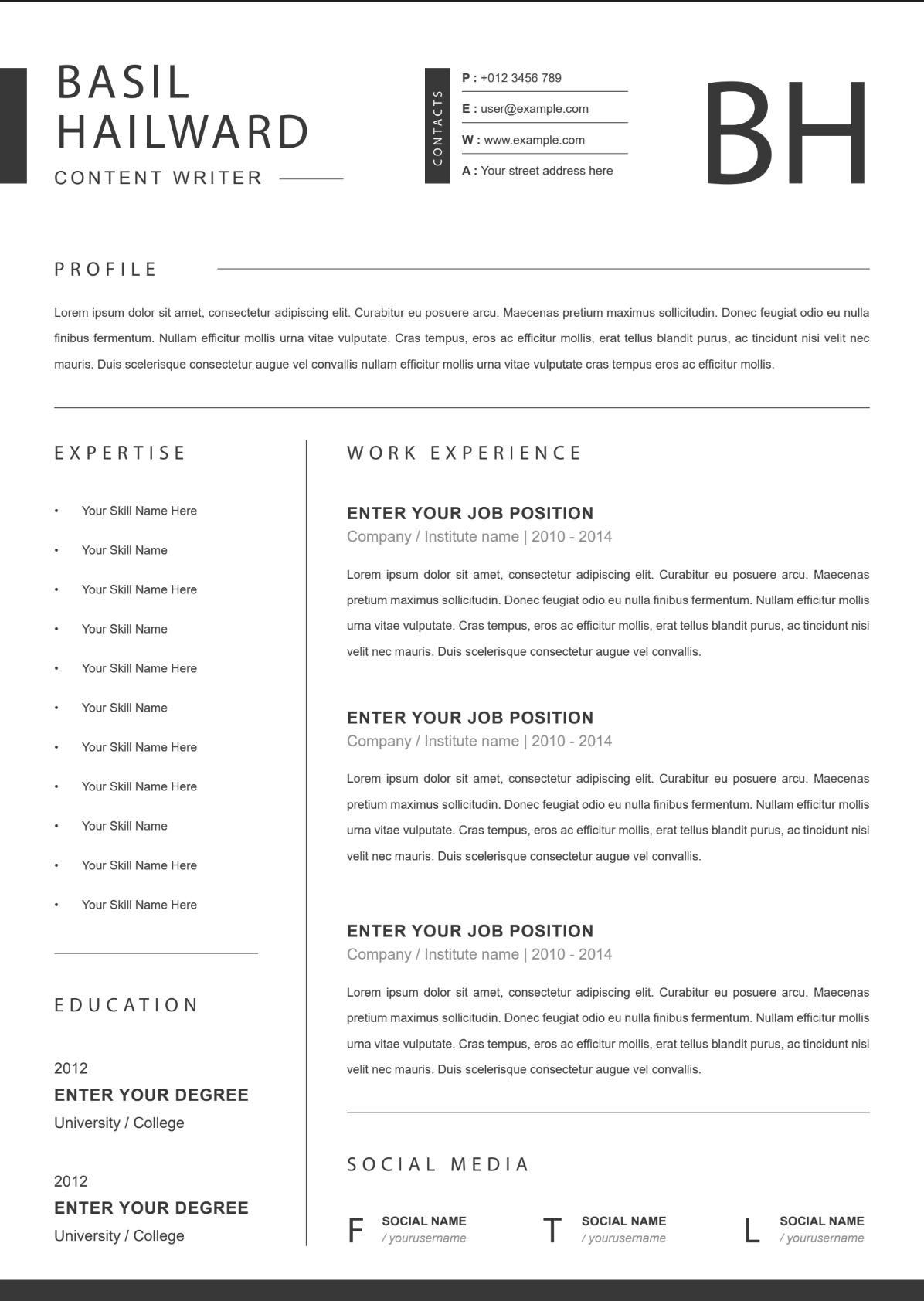
Grayscale resume template
Sleek and versatile, especially if your industry expects a headshot. The layout gives your name real presence, and the section lines keep things organized. If you trim the content a bit, it’s easy to fit everything on one page.

Yellow developer resume template
I like how clean and well-spaced this one is — the yellow headers make it super skimmable. If you’ve got solid experience, just list your degrees without details. Feel free to skip the hobbies section, and definitely ditch the references.

Academic resume template
This is a classic, ATS-friendly layout that reminds me of Rezi templates. Just add a summary or objective up top. I’d also fold the “leadership experience” into your education or work sections using a bullet point or two.

Contemporary resume template
This layout stands out in a sea of similar-looking templates — clean, modern, and one-page only (which works here). The summary section doesn’t need oversized text, though; keep it the same size as everything else for balance.

Black and white resume template
Simple, polished, and easy to scan. Add a summary or objective under your contact info to kick things off. Since the skills section pops visually, this one’s great if you want to really highlight your strengths.

Blue accents resume template
The blue accents are subtle but give this single-column layout some personality. You can trim things down by merging “skills” and “expertise” into one section, removing references, and tucking awards under the relevant job if needed.

Modern resume template
This one’s clean, sharp, and has a polished feel. Just make sure to add a short summary or objective at the top, and use bullet points in your work history so it’s easier to skim.

Minimalist resume template
The two-column layout is smart — it keeps contact info, skills, and education tucked neatly on the side so your experience gets the spotlight. Swap out “About Me” (you’re not writing a book) for “Summary” or “Objective,” depending on your experience level.

Boxed resume template
Big section headings and subtle boxes make this super easy to read. Add a short summary up top, and if you have relevant work experience, move it above education. Simple and effective, no fluff needed.

Green or blue resume template
A little color can go a long way, especially in creative industries. It’s spaced well and easy to follow. Just make sure your contact info is right at the top, and only include awards if they add value.

Orange resume template
The orange highlights give it a nice punch without being too loud. I like how it emphasizes the dates, but if you want to shift the focus, feel free to highlight job titles instead.

ATS resume template
This one’s simple and clean, with a layout that checks the ATS boxes — no funky formatting or distracting design. Trim the summary to 2–3 sentences so recruiters don’t glaze over, and stick to standard headings, like “Experience” instead of “Works Story” and simply “Skills” (also, “professional” is misspelled here).

Photo resume template
Visually fun and super polished, this resume fits a lot without feeling cramped. It’s not ATS-friendly, so best to use it when applying directly. Add a photo only if it’s standard in your field (like acting or modeling).

How to Make Your Resume on Illustrator
Here’s how to make your resume on Illustrator:
- Download Adobe Illustrator. It’s $22.99/month (billed annually), or $69.99/month for the full Creative Cloud suite.
- Open the app and choose how to start: use a built-in resume template, upload your own, or design from scratch.
- Fill in your resume sections: contact info, summary, work experience, education, skills, and any extras like awards or projects.
- Tailor your resume to the job by adding keywords from the job description into your summary, bullet points, and skills.
- Use our AI Keyword Targeting tool to quickly spot missing keywords and see where to add them.
- Keep the text readable and avoid putting words inside images, graphics, or icons.
- Don’t use skill bars or percentage ratings — ATS can’t read them, and they don’t help.
- Save your resume as a PDF and make sure the file size isn’t too large.
So, you want to make your resume on Illustrator. Whether you’re aiming for a polished, minimal layout, or a full-on work of art, Illustrator gives you the freedom to make it your own.
That said, opening a blank canvas for the first time can feel a little overwhelming, like “Okay… where do I even start?”
Luckily, Illustrator gives you a few easy ways to get started, whether you want to use one of their built-in templates, upload a template you already love, or design your own from scratch (huge respect if you go that route).
Below, I’ll walk you through your options so you can pick your path and get that resume done.
1. Choose how you want to start
First, download the Adobe Illustrator app. If it’s just for your resume, Illustrator alone costs $22.99/month (billed annually). Or, if you want access to the whole Creative Cloud suite, it’s $69.99/month.
From there, you have three ways to jump in:
Option 1: Use a built-in Illustrator resume template
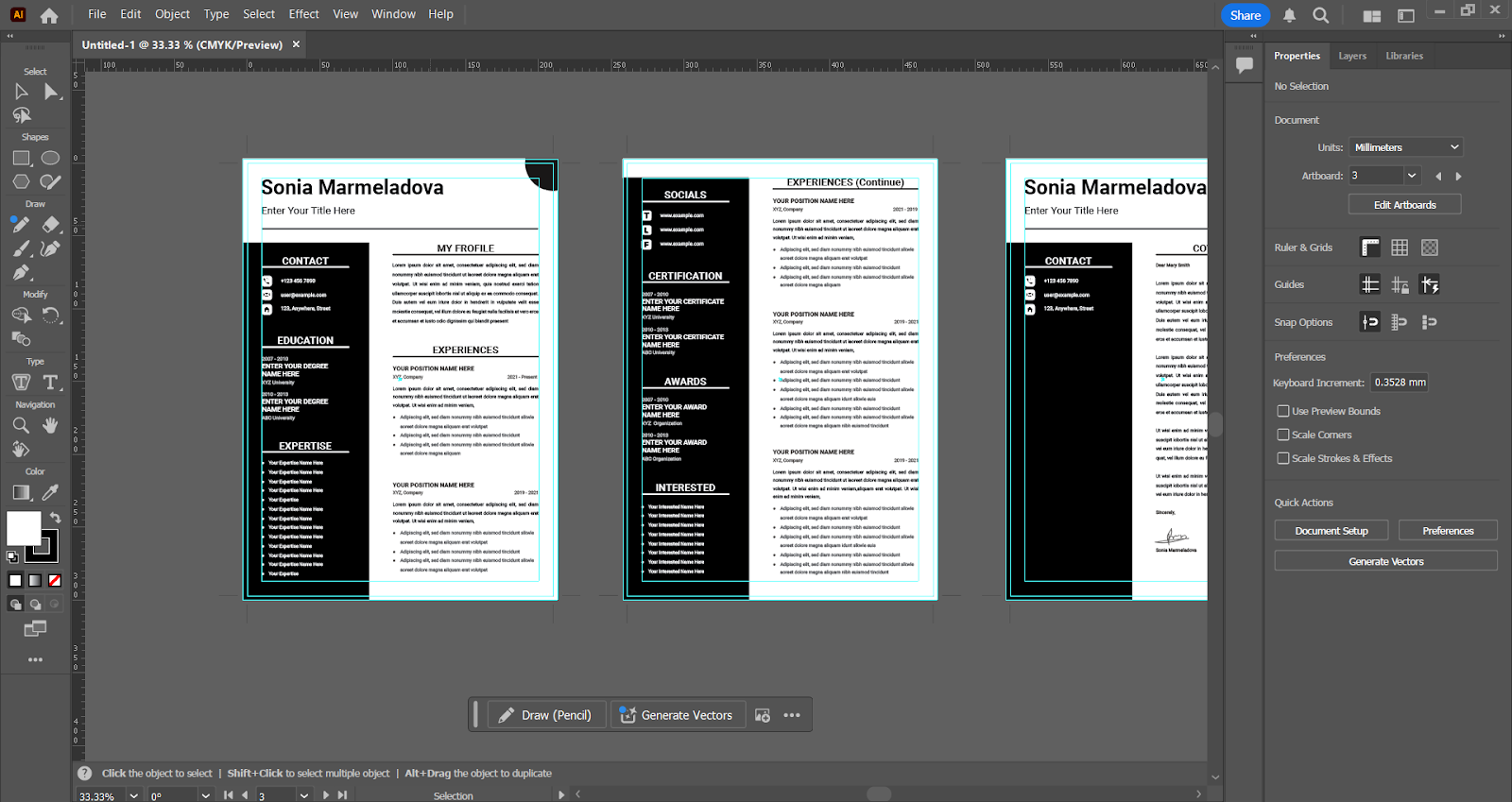
Open Illustrator, click “New File,” then select the “Print” tab. Scroll through the five available resume templates, pick the one you like, and start customizing it. Easy.
Here’s one of the resume templates in Illustrator:
Option 2: Upload your own resume template
Not a fan of the five templates? I get it, you’re hardly spoiled for choice.
Upload a resume template from Etsy, Canva, Google Docs, or anywhere you like. When you install Illustrator, you also get Creative Cloud, which gives you access to Adobe Express and Adobe Stock for even more templates. Find one you like, open it in Illustrator, and start editing.
Option 3: Design your own from scratch
Feeling creative? Click “New File” and start with a blank canvas. If you want some guidance, watch this YouTube tutorial on how to build a professional-looking resume in Illustrator:
INSERT VIDEO
2. Fill in and format your resume
No matter how you design it, be sure to include these resume sections:
- Contact details: Name, phone, email, location, LinkedIn.
- Resume summary or objective: 2–3 sentences summarizing your experience, skills, and the value you’re excited to bring to the team.
- Work experience section: Job title, company, dates, and 3–8 bullet points of achievements (ideally using the CAR method and numbers).
- Education section: Degree, school, graduation date, and any relevant honors.
- Skills section: Focus on skills that match the job description.
- Optional: Awards, languages, projects, hobbies, volunteer work.
And I know, simply 'filling in your resume' is easier said than done, so you can use our free AI Resume Bullet Point Generator to speed the process. Just enter a few professional details and receive a range of personalized bullet point suggestions you can regenerate as much as you like until you're happy with the results.
3. Make sure it’s ATS-friendly
An Applicant Tracking System (ATS) is often the first to scan your resume, so it’s important to tailor your resume for better visibility. Take keywords from the job description and sprinkle them in your bullet points, summary, and skills section.
If you want a shortcut, our AI Keyword Targeting tool is a lifesaver. Just paste the job post, and it highlights missing keywords and suggests where to add them.
Here’s the AI Keyword Targeting tool in action:

A few more tips to get your resume ATS-ready:
- Use clear, readable fonts like Arial or Calibri, and keep your text out of images or graphics.
- Keep the design straightforward, as ATS can’t read visuals, icons, or decorative elements.
- Ditch skill bars or “proficiency” percentages. Not only are they unreadable by ATS, but also, who wants to say they’re 60% good at Excel?
- Save your resume as a PDF and watch the file size, as this Redditor pointed out:

Pros and Cons of Using an Illustrator Resume Template
Here are the pros and cons of using an Illustrator template:
- You get total design freedom over layout, colors, and fonts.
- It’s great for building a modern, eye-catching resume.
- No formatting glitches like in Word or Docs, as everything stays in place.
- High-resolution output, which is perfect for printing or portfolios.
- You can match your resume’s style to your personal or professional branding.
- It takes time to learn if you’re new to design tools like Illustrator.
- Some elements (like icons or layered text) aren’t ATS-friendly.
- The app only has five resume templates, so you’ll need to look elsewhere for more.
- Slower to update your resume than using a resume builder or Docs.
- There’s no spell check or AI tools to help with writing or keywords.
You may have heard that Illustrator is the tool to use for resumes in your industry, and you’re not alone — a lot of creatives swear by it. But once I started digging around, I realized not everyone’s on the same page. In fact, some people are strongly against using Illustrator for resumes, especially when it comes to ATS readability (aka whether a computer can even read your resume).
There’s been a ton of debate on Reddit about this. Some people love the design freedom, others have had issues with their resume getting seen by hiring managers. One person even got advised to switch to Word or InDesign to avoid formatting problems:

And then you’ve got hiring managers like this one who are flat-out against Illustrator resumes altogether:

So, is it worth it? Let’s break down the pros and cons to help you decide if Illustrator is the right tool for your resume, or if it’s more hassle than it’s worth.

The Best Illustrator Resume Template Alternatives
If you’re leaning toward something easier to use and guaranteed to be ATS-friendly, give these Rezi templates a shot. They’re neat, professional, not overloaded with designs, and still look great.
The basic resume layout is officially back in style. We’ve come full circle to the era of minimal formatting and dial-up internet (except thankfully, we still have WiFi).
We actually broke down the evolution of resume design in this video:
Here are some of our top Rezi resume templates:
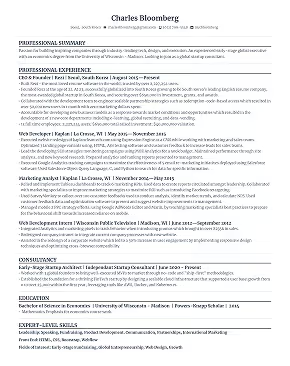
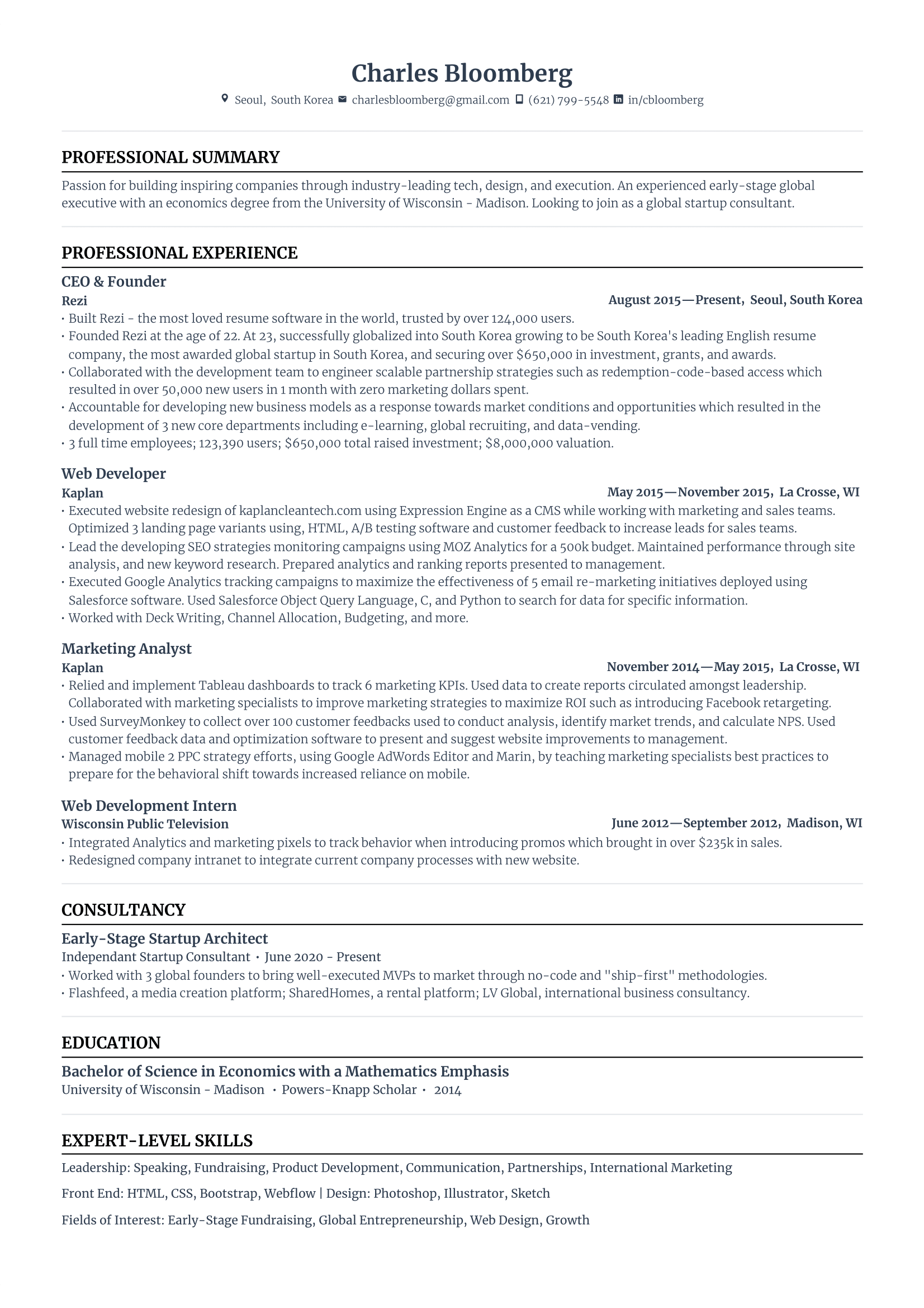
Standard Rezi resume template
This one might look a little plain at first glance with its lack of color or graphics, but that’s kind of the point. It’s polished, professional, and super easy to scan. Plus, the ATS is going to read every word like a dream.
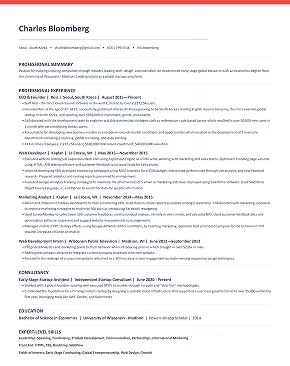
Modern Rezi resume template
One of my personal favorites. Want a splash of color without overdoing it? This one’s for you. I’m a fan of the blue font as it makes job titles and degrees pop just enough. The grey dates and locations add breathing room too. So even if you have a packed resume, it won’t feel like a wall of text. Bonus: you get to pick from 12 font options. You’re welcome.
-1.png)
Bold Rezi resume template
I love how minimal this one is. It’s wild how much difference a single line of color can make — it instantly adds a bit of personality to an otherwise clean layout. And yes, you can customize the color. I recommend the green. It’s almost brat-coded, but not quite.
-1.png)
Alternative Rezi resume template
Craving a little more visual flair? This one adds some design without messing with ATS readability. The styling sits subtly behind your contact info, so it looks great but doesn’t get in the way of keyword scanning. Perfect blend of form and function.

Still unsure about using a Rezi template? Don’t just listen to me, I’m clearly biased. But hear it from Luke, a visual designer, who says switching to a Rezi template changed everything for him:
If you want to see what else Rezi has, check out the 15+ ATS-Friendly Resume Templates.
Summary
Here’s a recap on Illustrator resume templates:
- Illustrator gives you total design freedom, which is perfect if you want something unique and visually on-brand.
- You can start with a built-in template, upload one you found elsewhere, or build it from scratch.
- There are only five built-in resume templates, so most people go hunting for better ones or start fresh.
- Most Illustrator resumes aren’t ATS-friendly due to columns, icons, and graphics that can throw off resume scanners.
- Use them when you’re applying directly by email or through a connection, not online portals.
- Include all the essentials: contact info, summary/objective, work experience, education, skills, and any relevant extras (like awards or hobbies).
- Avoid putting text inside images, skip skills bars, and use easy-to-read fonts so your resume stays searchable.
FAQ
Is Illustrator good for resumes?
Illustrator is great for creating stylish, custom resumes, especially in creative fields like design or fashion. It gives you total layout control. But it’s not always ATS-friendly, so avoid it if you’re applying through online portals. It works best when sending your resume directly to a person.
What’s the best AI platform to make a resume?
Rezi is one of the best AI resume tools out there. It’s built to pass ATS filters and gives smart keyword suggestions based on the job description. The layout is clean and beginner-friendly, the writing help is strong, and it takes care of the formatting for you, no design skills needed.
What’s the best Adobe program to create a resume?
Pick Illustrator if you want a sharp, creative one-page resume with full control over design. For more complex projects (think multi-page resumes or portfolios), InDesign is the best choice because it handles text and layouts better. Photoshop is usually less ideal unless your resume relies heavily on photos.
Do employers check resumes for AI?
Employers don’t usually check if a resume was made with AI, but many do use AI to screen resumes. Applicant Tracking Systems (ATS) scan for keywords and rank your resume based on how well it matches the job description, before a human sees it. If your resume is overly designed or missing key phrases, it’ll likely get ranked lower.
When to use Photoshop vs Illustrator vs InDesign?
Use Photoshop mainly for photo editing or image-heavy resumes, though it’s tricky for text work. Illustrator is your tool for clean, vector-based designs on a single page. InDesign is built for advanced layouts and multi-page documents, making it perfect when you need polished typography and portfolio integration.

Upload or drop your resume to get started
Upload your resume to get started
Score my resume

Sarah Coghlan is a writer and editor passionate about making resume and career advice clear and accessible to all. Based in Barcelona, her goal is to help job seekers create standout resumes and navigate the job search process with confidence and ease.