Resume
Canva AI Resume Builder Review: Is It Really ATS-Friendly?
Thinking about using Canva for your resume? This Canva AI Resume Builder review breaks down its features, ATS compatibility, and if it can help you land a job.
Published on
April 29, 2026
Updated on
April 29, 2026
The Canva AI Resume Builder could be worth using if your priority is making an aesthetically pleasing resume on a budget. It’s great for design control and editing, but the AI tools are fairly basic and don’t meaningfully improve or tailor your content. More importantly, many templates are not ATS-friendly, and heavy use of design elements can actually hurt your chances of getting through screening systems. It can work for some creative roles, but for serious job hunting where content and ATS performance matter, it’s not the strongest option compared to dedicated resume builders.
Canva has built a reputation as a budget-friendly option for creating almost anything, from social media graphics and presentations to flyers and business cards. But making something look pretty and building a resume that helps you land interviews are two very different things.
Since I know a thing or two about what recruiters look for and what makes a resume perform well, I wanted to see if the Canva AI Resume Builder can really help your job search or if the design-heavy templates and basic AI tools fall short compared to dedicated resume-building platforms.
In my honest review, I’ll cover:
- How the Canva AI Resume Builder works.
- A breakdown of all the tools and features.
- My top resume-building alternatives.
If you don’t want to take the risk with Canva, try our free AI Resume Builder. Our advanced AI tools help ensure tailored, personalized content and ATS compatibility.
And check out more comprehensive reviews:
{{cta-upload}}
What’s the Canva AI Resume Builder?
The Canva AI Resume Builder doesn’t behave like a traditional resume builder; it’s more like a design tool that happens to let you make a resume.
Instead of guiding you through each section like most dedicated resume platforms, Canva starts by pushing you toward a template. From there, the process is mostly about choosing a layout you like and then editing the content yourself inside the design.
While you’re editing, Canva offers some AI features that can help with things like:
- Rewriting text
- Shortening or expanding content
- Adjusting tone
- Suggesting design changes
But these AI tools are pretty lightweight, so don’t expect a deep resume strategy or serious tailoring. Most of the time, the AI is just nudging wording around while Canva stays focused on the visual side of things.
In simple terms, the Canva AI Resume Builder is best described as a design-first resume tool with a few AI features added in, rather than a true AI-powered resume platform built around resume writing itself.
Find out what to look out for when creating a resume: How to Choose an ATS Resume Builder
How to Use the Canva AI Resume Builder?
Since Canva puts so much emphasis on design, the process starts with choosing how you want your resume to look. You pick a layout first, then edit the content yourself inside the design, which feels more like creating a document than being guided through resume writing.
Here’s how the process works:
1. Start with a template or blank design: Begin by choosing one of Canva’s resume templates or starting with a blank page if you want full control. Canva has plenty of options, but the platform immediately pushes you toward strong visuals.
2. Open the AI resume tools: You can edit your content solely with Canva, or go to the sidebar, click “Apps”, and search for “resume”. This is where Canva’s more resume-focused AI features live, rather than in the main editor itself.
3. Add your resume details: When using the apps, you can paste in your existing resume text along with the job description you’re applying for. Canva doesn’t build your resume from scratch, so having your current content ready makes the process easier.
4. Generate tailored suggestions: After adding your information, click to generate suggestions. The AI tools can create or adjust your resume sections, but you’ll need to edit to add your personal voice.
5. Review and refine the content: Look through the AI suggestions and decide what actually improves your resume. Just be prepared to manually fix formatting because Canva sometimes makes the spacing and text layout a little messy.
6. Adjust the design: This is where you’ll likely spend the most time. You may need to clean up font sizes, line spacing, bullet points, and text boxes.
7. Download or share your resume: Once everything is done, you can download your resume for free as a PDF or share it directly through Canva by email or link.
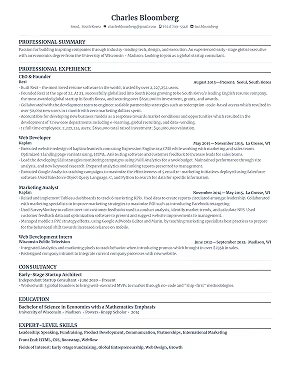
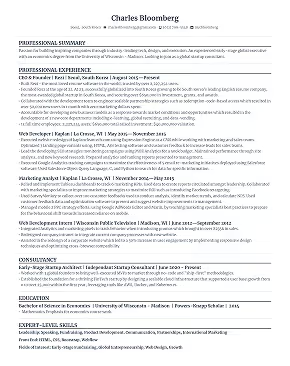
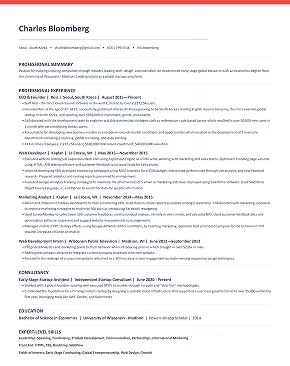
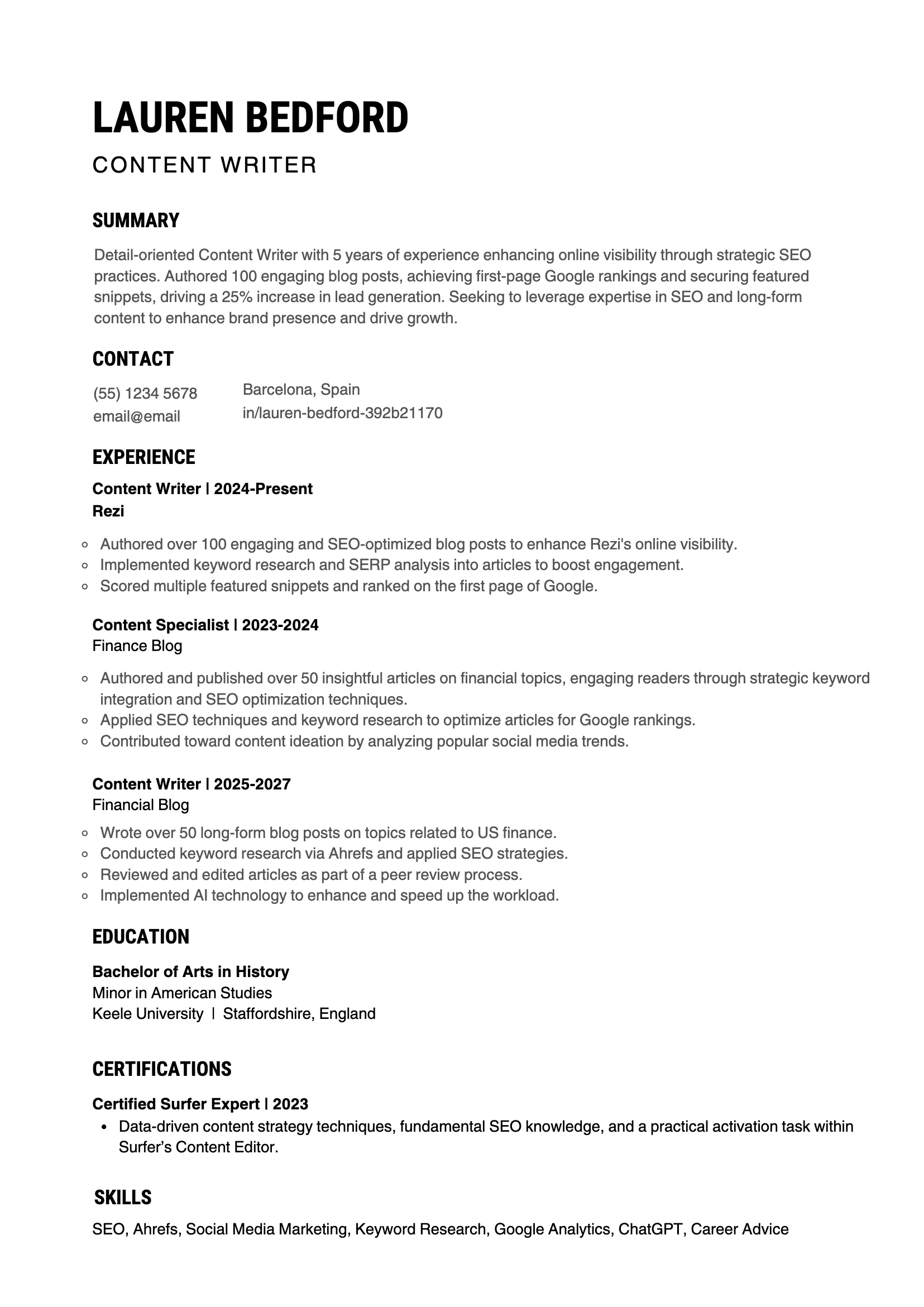
I opted for the simplest design to keep my resume ATS-friendly. Here’s how it turned out:
Canva AI Resume Builder: Pros and Cons
Canva isn’t for everyone. It’s no secret that there’s a heavy emphasis on design, which is great if you want an aesthetically pleasing resume, but not ideal if you’re trying to amp up the professionalism.
Here are the main pros and cons if you want a quick summary of the platform.
Pros
- Variety of templates: Canva gives you a large library of resume templates, including plenty on the free plan, so it’s easy to create something without spending money.
- Collaboration features: You can share your resume with other people for real-time comments and edits, which can be useful if you want feedback before applying.
- Access to third-party tools: The Apps tab lets you connect outside resume tools, which can offer more resume-specific features than Canva’s own builder.
Cons
- Style over substance: Canva clearly treats resumes like design projects, with columns, icons, charts, and photos that may look impressive but can distract from the content and create issues with ATS scanners.
- Unnecessary design options: Features like animations, video, audio, and endless font choices make it easy to over-design a resume when most recruiters prefer something simple.
- Basic AI features: Magic Write and Ask Canva mostly rewrite text with minor word changes, often missing the deeper tailoring and stronger content suggestions.
- Lack of features: Instead of improving your resume, the builder mostly copies your existing content into a new design, and sometimes breaks the formatting in the process.
- Formatting headaches: Imported resumes can end up with tiny text, lost bullet points, broken spacing, and jumbled sections, meaning you have to make lots of manual edits.
Canva AI Resume Builder: Tools and Features
Most of Canva’s tools focus on design, with a few AI features to help you rewrite or improve your content. To really dig into each feature and see if it’s worth your time, I’ve gone through the whole process of building my own resume from start to finish (with a few side quests thrown in).
Here’s a quick summary of the main Canva tools and features:
- Canva resume templates
- Canva design elements
- Canva Magic Write™
- Ask Canva
- Extra features
Now, let’s see how they work and if they help or hinder the resume-building process.
Canva resume templates
If you want choices, Canva has a lot of them. The platform clearly doesn’t believe in “less is more” and offers hundreds of resume templates. On the plus side, that means dozens of templates are available on the free plan, which I can’t say for many other resume builders.

Most of the templates lean heavily into style, with two-column layouts, color blocks, graphic icons, skill bars, and profile photos. For certain creative roles, that visual flair might help you stand out. For everyone else, it can create problems.
First, let’s address those headshots. Canva includes them in a surprising number of templates, despite photos not being standard practice for most resumes, as they can introduce bias. Yes, you can remove them, but would a new job seeker know to do that?
But the biggest issue is ATS compatibility. Applicant Tracking Systems usually scan resumes in a very linear way. When you add text boxes, columns, charts, and decorative elements, the software can misread or completely skip parts of your resume.
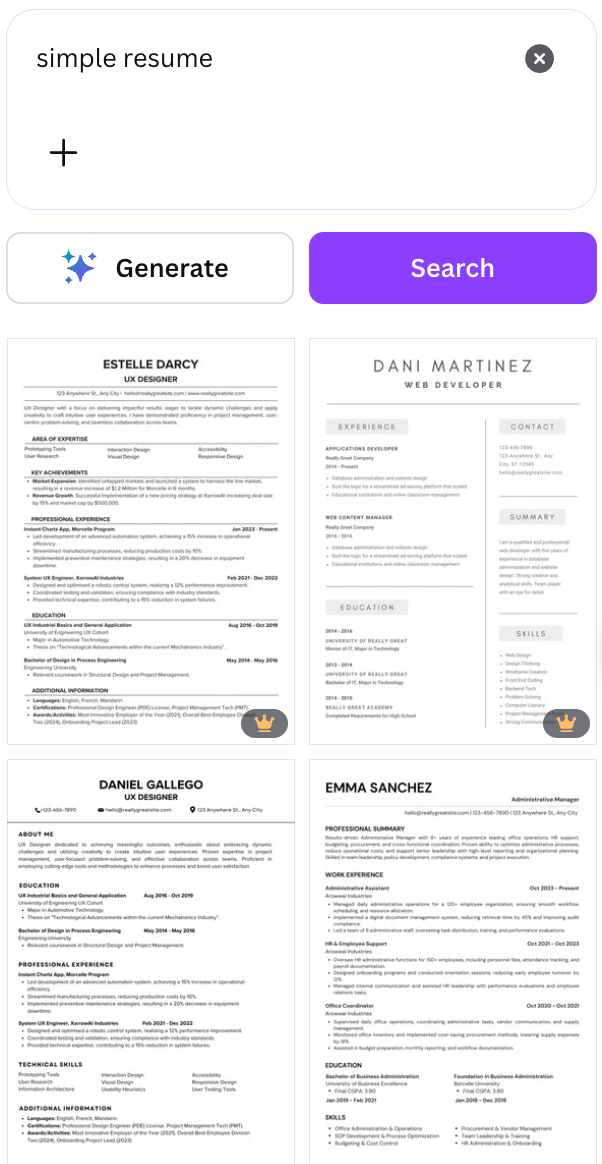
I’ll give Canva credit for letting you request simpler resumes in the search bar. But again, that’s all they need. Users don’t need to wade through a mountain of unprofessional templates just to find one that’s ATS-compatible and familiar to recruiters.
Check out these alternative resume templates:
- Free ATS Resume Templates
- Best Resume Templates and Examples
- Free Resume Templates & Tips for a Professional Resume
Canva design elements
This is where Canva proves it’s really just a design platform that happens to let you make resumes. You can customize nearly everything, such as shapes, graphics, charts, tables, colors, spacing, and resume fonts.
In the world of resumes, most of those features can work against you. Recruiters (and ATS) prefer resumes that are simple, readable, and easy to skim. Canva gives you the tools that make it very easy to over-design something that should be straightforward.

Even some of the more standard editing tools feel oddly disconnected from resume best practices. For example:
- Choosing from an enormous font library, including fonts that look more appropriate for a child’s birthday party invitation.
- Inserting charts and graphics that may confuse the ATS software.
- Adding tables that can break resume parsing.
- Including video, audio, and even animations (an absolute no-go).
Most job seekers should never put any of that on a resume. The fact that Canva even offers it just reinforces that this platform is built around visual design, not serious resume strategy.
Learn how to avoid any design red flags: How to Pick the Right Resume Template
Canva Magic Write™
Canva’s built-in AI writer, Magic Write™, is supposed to help generate, summarize, expand, or rewrite your text. Naturally, I had to test it myself.
When I tried rewriting my resume summary, Canva gave me a few options, such as:
- Fix spelling
- Shorten text
- Make it more formal
- Make it more fun (not recommended)
- Rewrite
- Transform text
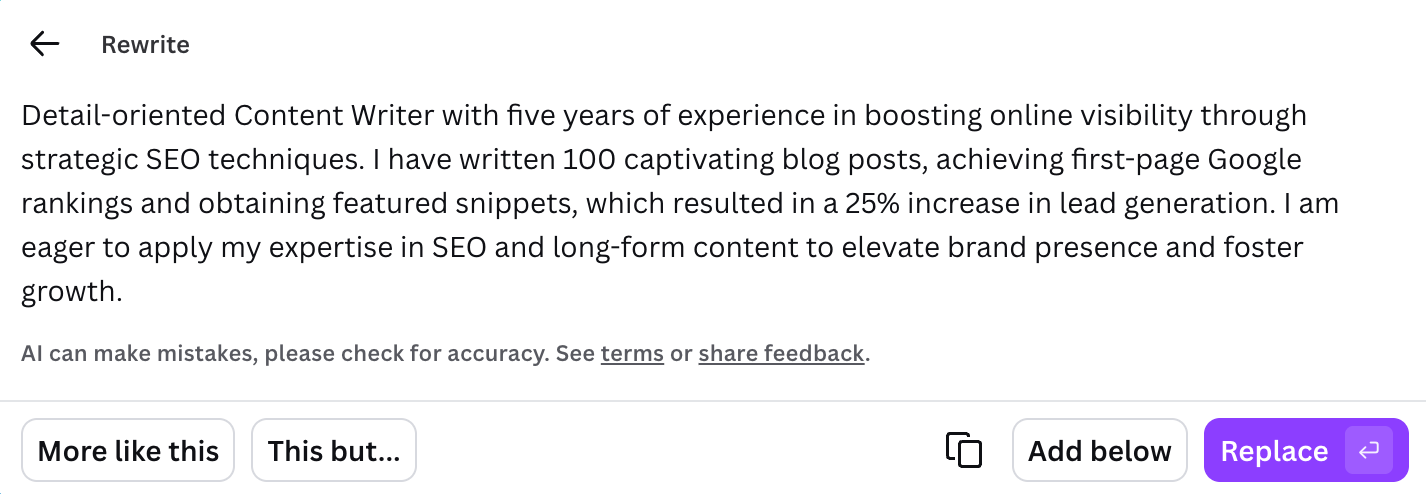
I used the standard rewrite option, and no surprises, the changes were pretty underwhelming. The biggest difference was that it shifted parts of my summary into first person, which isn’t standard on a resume. Beyond that, it mostly swapped in a few synonyms while leaving the rest nearly untouched.
Here’s what my summary looked like before:

And here’s what my summary looked like after using AI to rewrite it:
One thing I did like was the “This but…” feature, where you add your own prompt to guide the rewrite. That at least gives you a little more control instead of letting the AI completely freestyle.
I also tested the “Transform Text” feature with this prompt: “Can you rewrite this text to align better with a marketing position?” The result? A few word swaps, no meaningful marketing language, and nothing that actually tailored the content to the role. It felt very surface-level.
You’d probably get stronger results by pasting your content into ChatGPT or by using a resume builder that’s actually designed around resume writing instead of general content editing.
For example, you can use our AI Keyword Scanner by pasting a job description and pinpointing keywords and industry-relevant terms to weave naturally into your bullet points.
Ask Canva
Another AI feature is Ask Canva, which lets you click into a section of your resume and ask for help directly. You can:
- Rewrite text
- Ask for improvements
- Enter a custom prompt
- Turn text into an image (which, for a resume, is another bad idea)

When I tested it on my work experience section and asked for improvements, I expected it to improve the wording or strengthen the impact of the content. Instead, it mostly focused on visual presentation and gave generic feedback.

And that was the pattern I kept noticing: Canva’s AI tends to care more about how the resume looks than whether the content helps you get hired. But still, for a tool positioned as “AI-powered,” the suggestions felt surprisingly shallow.
If you’re looking for more substance, try our free AI Resume Bullet Point Generator. Just enter your role details, and our technology will provide a list of tailored suggestions for your resume.
Other features
Canva also offers more features that are mostly focused on design, rather than resume building. Here’s a quick summary of some of these features:
- AI photo editing: Retouch or enhance profile images (although most resumes shouldn’t include a headshot in the first place).
- Magic Edit: Change backgrounds, textures, or objects in an image using a text prompt.
- Real-time collaboration: Let other people review, comment on, and edit your resume with you, which could be useful if you want feedback from a mentor or friend.
Canva Resume Building Apps
If Canva’s built-in resume tools leave you underwhelmed (I don’t blame you), there’s another route. Inside the “Apps” tab, Canva lets you browse third-party integrations, including resume-focused tools that plug into the platform. These apps offer more practical features like resume checking, tailoring, or AI-assisted writing.
Let’s see how they work in practice.
AI Resume Builder
Canva’s AI Resume Builder sounded promising at first because it includes three tools:
- Resume Builder
- Resume Checker
- Cover Letter Generator
And the setup actually starts well. You can either upload your existing resume or manually enter your details, which is way more practical than starting from a blank page.
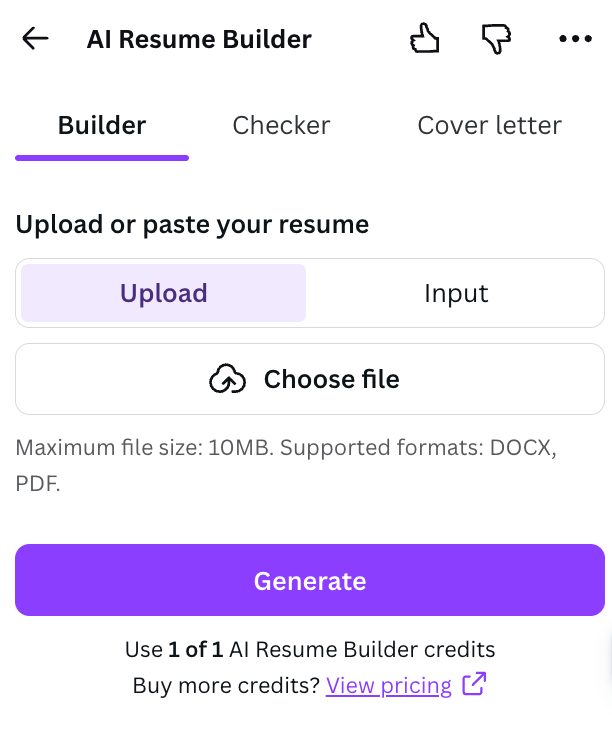
Once I uploaded my resume, the only real option was to insert that text into the design. That’s it. There was no AI rewriting, no tailoring to a job description, and no smart content suggestions. It was basically just taking an existing resume and pasting it into a prettier template.
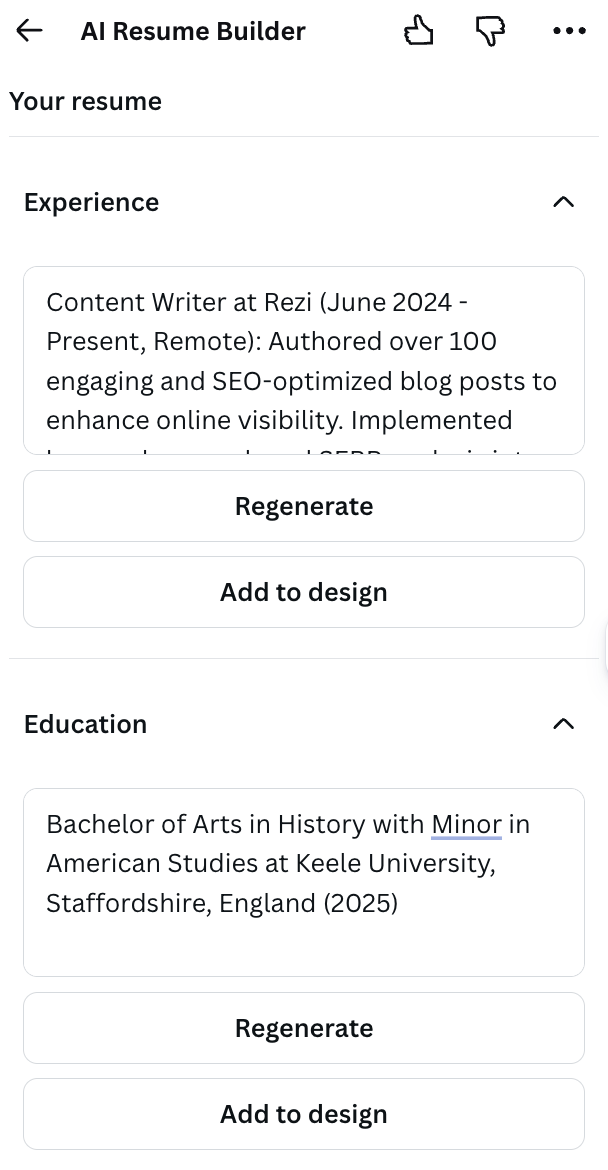
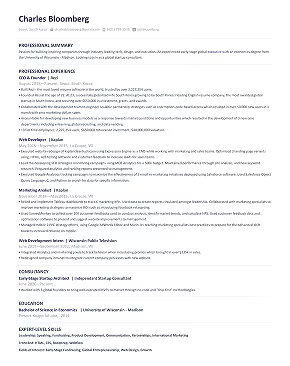
There is a “Regenerate” button, which sounds encouraging until I clicked it and literally watched my text disappear. And somehow, even the basic importing didn’t work smoothly. Because Canva insists on putting everything in text boxes, my content ended up squeezed into a tiny, unreadable box, which I needed to reshape and edit.
Exhibit A:

On top of that:
- Bullet points were converted into paragraphs
- Spacing needed manual fixing
- Headings needed adjusting
- Font sizes had to be corrected
- Formatting had to be rebuilt almost from scratch
Then comes the part that made me raise an eyebrow: you can only upload one resume before hitting a paywall. After that, unlimited access to the builder, checker, and cover letter tool costs $6 per month or $39 per year.
So, no, I didn’t test the Resume Checker because I refused to pay for a feature I already didn’t trust, and based on how the rest performed, my expectations were not exactly soaring.
Want to check your resume before sending it off? Try our ATS Resume Checker. Our tool gives you specific feedback and scoring to help you identify where you need to improve.
Job and Resume AI
I also tested “Job and Resume AI” by Jara, another resume app available inside Canva. Again, I was curious whether a third-party tool could do what Canva’s own AI couldn’t.

The first step is importing your resume, but instead of uploading a file, you have to paste it in plain text manually. That already feels more fiddly than it should. The alternative is using Import from design, which pulls the information from your existing Canva resume.
In classic Canva fashion, the import was messy.
My sections came through jumbled, and some experience points were disconnected. Yes, this is annoying. But it’s also concerning because if Canva can’t consistently read your resume inside its own system, it makes you wonder how the same document would be interpreted by ATS software.
Next, you paste in the job description so the AI can tailor your resume to the role. That part is actually more in line with what a proper resume tool should do.
The app then breaks your resume into sections and gives you suggestions you can drag directly into your Canva design. Unfortunately, the moment I dragged in one suggested resume bullet point, it deleted the rest of the bullets in that section.

Most of the suggestions were simply rewrites of what I had already written, so they didn’t add much value or impact.
But occasionally, it did produce something genuinely useful by pulling together ideas from the job posting. For example, it took two separate responsibilities from the job description and turned them into:
“Collaborated cross-functionally to adapt content strategies based on real-time audience insights.”
While it proved it can mirror the job ad, it still needs some work, as the points were pretty vague and lacked measurable results. That said, it was still one of the few moments where the AI felt like it was doing more than shuffling synonyms around.
In my skills section, the app also removed one of my existing skills and added several that better matched the job. That was useful, but it still felt pretty basic compared to dedicated resume builders that provide deeper, more strategic recommendations.
Canva Resume Builder Reviews
There aren’t many reviews on using Canva specifically for resumes. But a quick search on Reddit, and you’ll find plenty of stories from both job seekers and hiring professionals who advise against using Canva’s heavy design elements and creative templates.
Here’s a story from an HR professional about how using a Canva resume backfired:

This Reddit user also shared how not to use Canva and how it’s better to be more subtle:
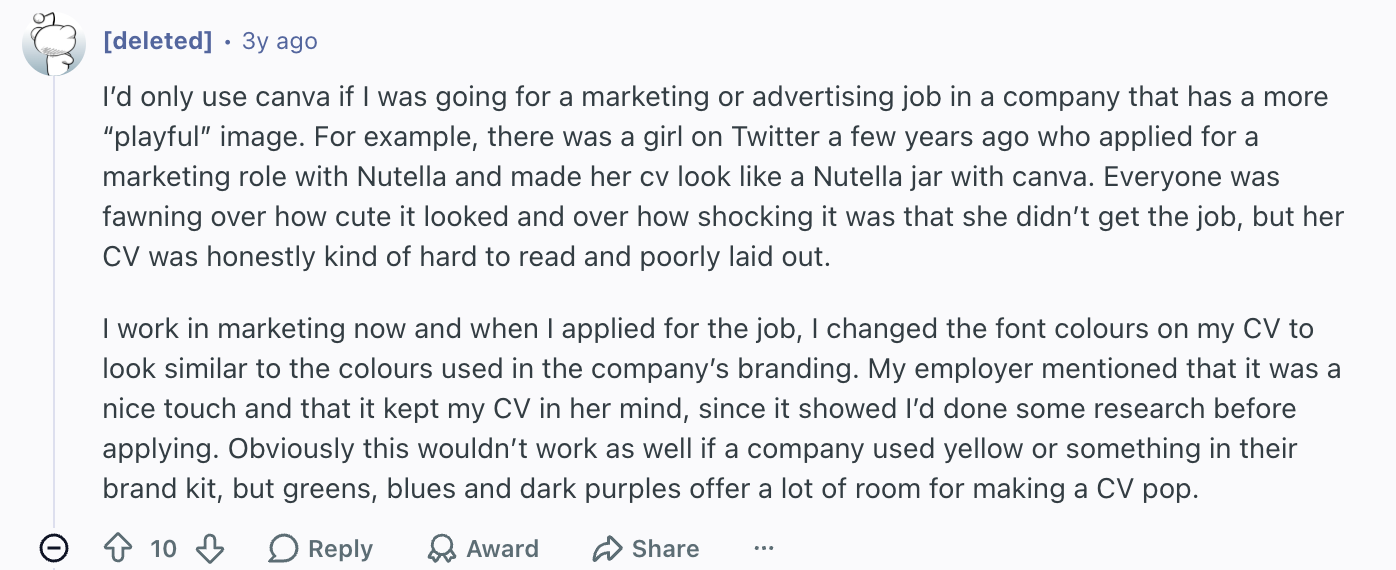
And a staffing professional gave their perspective on “creative” resumes:

The message is pretty straightforward: keep your resume template simple and focus on content.
Learn more about best formatting practices: Best Resume Format for AI Screening
Canva AI Resume Builder Alternatives
If Canva feels too focused on making your resume look pretty instead of helping it perform, there are many stronger alternatives. Some are better for AI writing, others are better for ATS optimization, and the best ones do a great job of balancing both.
Here are my top picks:
- Rezi: I acknowledge my bias here, but Rezi takes a completely different approach from Canva by putting the focus on content instead of decoration. It centers on ATS-friendly formatting and AI tools that help tailor your resume to specific job titles, industries, and job descriptions. The AI feels much more intentional because it helps create stronger, more targeted bullet points instead of just lightly rewording what you already wrote.
- Resume.io: Resume.io keeps things modern and professional. Its AI tools aren’t the most advanced, but I found them genuinely useful for improving existing content by adding stronger details instead of forcing you to rewrite everything from scratch.
- Sheets Resume: Sheets Resume takes the opposite approach to Canva’s design-heavy style. It gives you one ATS-friendly template and keeps the attention on the writing itself. What I like is that the AI acts more like guidance than automation, so you still feel in control of your resume while getting practical suggestions.
- Teal: Teal is useful if you want more than just a resume builder. It combines resume writing with job search tracking, so you can manage your applications while tailoring your resume to each role. Features like keyword matching, bullet point generation, and job description comparison make it especially useful if you are applying to a lot of roles.
- Jobscan: Jobscan is built around optimization, from resume scoring to keyword matching and skill suggestions. The templates stay simple and readable, which may not be as visually exciting as Canva, but they are much more likely to survive hiring software without getting mangled.
Check out more popular resume-building platforms:
Final Thoughts: Should You Use the Canva AI Resume Builder?
Canva’s resume tools are good at making resumes look attractive. That part is undeniable.
But if we’re talking about whether it’s a good resume builder specifically, that’s where I have to be more critical. The templates often prioritize appearance over hiring performance, the AI writing tools are basic, and too many features encourage choices that can actually hurt your chances with ATS systems or recruiters.
Canva is great for creating a visually impressive resume, especially for creative fields. But if your priority is a resume that is strategically written and optimized to get through hiring systems, it’s better to go with a platform specifically designed for resume building.
FAQ
Is Canva really free for resumes?
Mostly, yes. Canva lets you create and download plenty of resumes for free. You can access a decent selection of templates, edit them in the drag-and-drop builder, and export your resume as a PDF without being hit with a paywall.
That said, some premium templates, design elements, and certain AI features are locked behind the Pro plan, so depending on the template and design you choose, you may have to cough up $120 a year for Canva Pro.
Are Canva templates ATS-friendly?
Most Canva resume templates are not naturally ATS-friendly because they rely heavily on text boxes, multiple columns, icons, graphics, and decorative formatting.
Applicant Tracking Systems prefer simple, single-column resumes with standard headings. Canva, on the other hand, often leans heavily into design elements, and that can make the content harder for software to read correctly.
What are the disadvantages of a Canva CV?
The biggest downside is that Canva focuses more on appearance than actual resume performance. A few issues stood out when I tested it:
- The templates often prioritize style over content
- AI writing tools feel basic and surface-level
- Formatting can break when importing text
- Bullet points can turn into paragraphs
- Some features create more manual work than they save
And that’s the theme with Canva. It can make a resume look visually impressive, but sometimes it feels like you are spending more time fixing spacing and formatting than improving the content that actually gets interviews.
Do employers not like Canva resumes?
It depends on the employer and the industry. For creative roles like design, marketing, or media, a tasteful Canva resume can sometimes work when visual presentation matters more.
But for most industries, hiring managers can see overly designed resumes as distracting or unprofessional. There is also the practical issue that if the resume doesn’t get read correctly by the ATS, an employer may never get the chance to see it, as it won’t show up when they filter for specific keywords and phrases.

Upload or drop your resume to get started
Upload your resume to get started
Score my resume

Lauren Bedford is a seasoned writer with a track record of helping thousands of readers find practical solutions over the past five years. She's tackled a range of topics, always striving to simplify complex jargon. At Rezi, Lauren crafts genuine and actionable content that guides readers in creating standout resumes to land their dream jobs.